How to export your data from Samsung
Samsung is required to give you a copy of the data it holds about you, including photos, videos, health data and files. The request itself is free, and arrives as one or more .zip files. Typical wait: a few days.
Step by step
Every screenshot below is from Samsung's own pages on 30 July 2026.
-
Open the Samsung Privacy portal
Go to privacy.samsung.com and sign in with the Samsung account whose data you want.
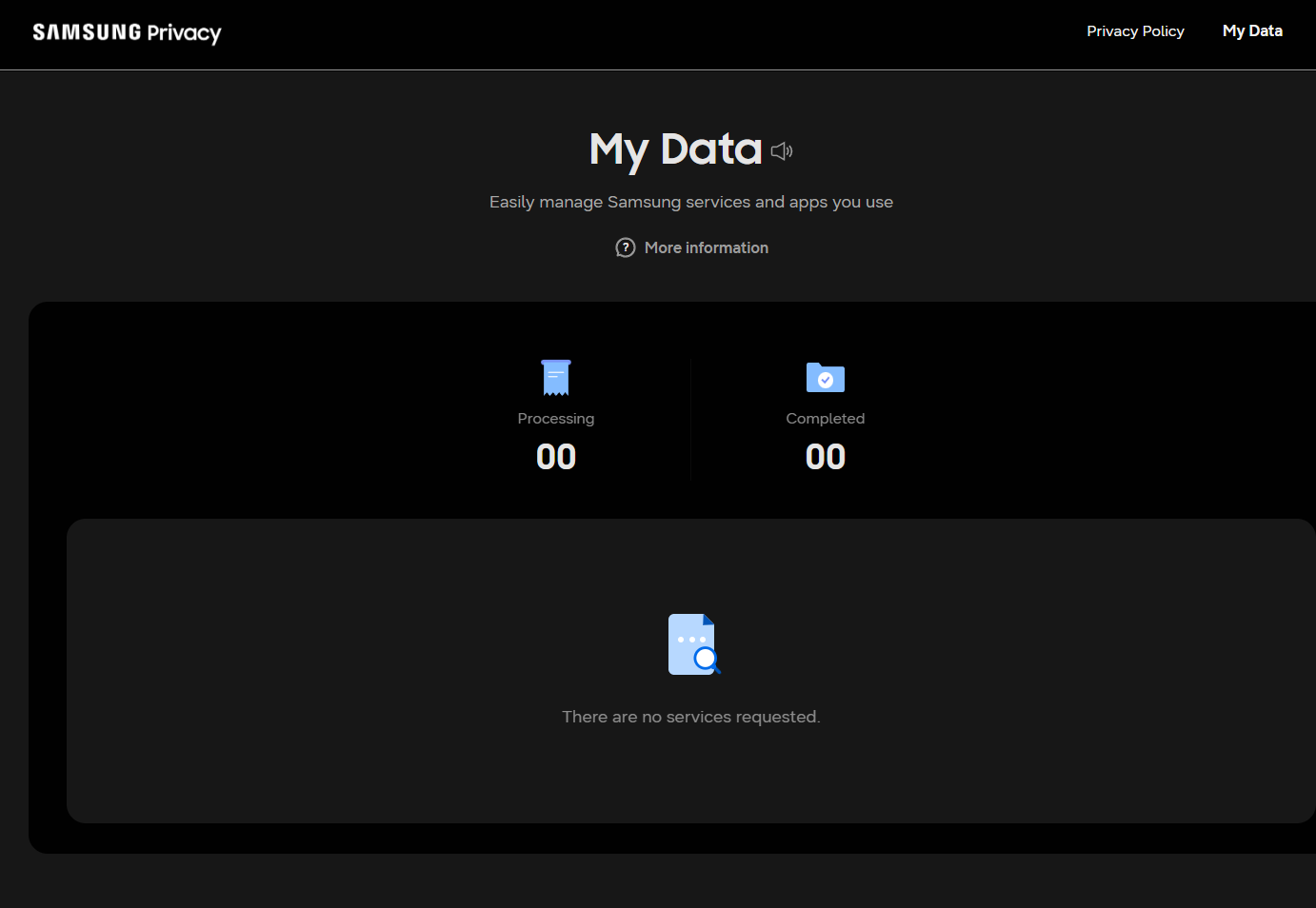
My Data is the whole portal: it counts requests in progress and finished, and lists nothing until you ask for something. -
Choose "Download or delete your data"
Select the option to request a copy of your personal data, then continue to the data request form.
-
Select what to include
Pick the services you use, such as Samsung Cloud, Gallery, Health and account data. Photos and video are usually the largest part.
-
Submit the request
Confirm the email address the download link should be sent to and submit.
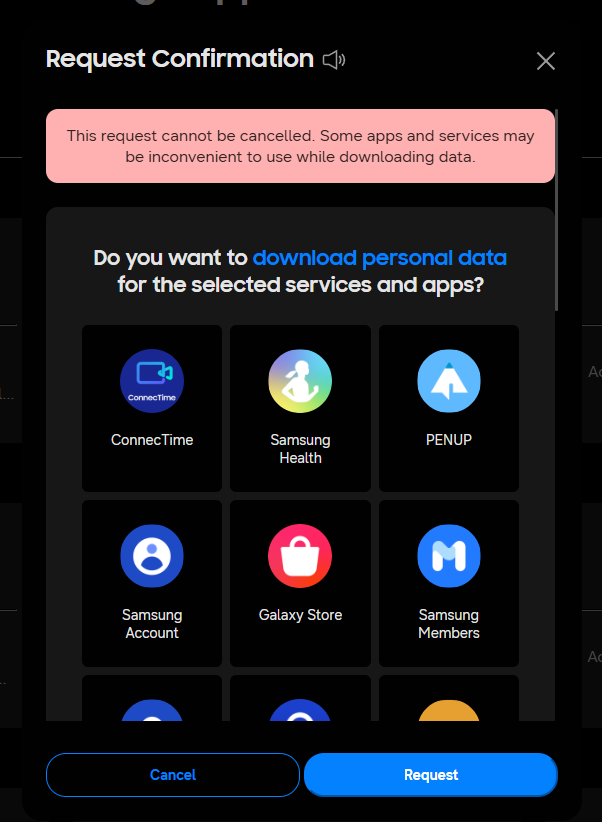
Read the red box before pressing Request. Samsung will not let you cancel this, and it says some apps may misbehave while it runs. -
Wait for the email
Samsung prepares the archive and emails a link, usually within a few days.
-
Download every part
Keep all files together in one folder so Muletto can open them as a single library.
Worth knowing
What Muletto does with this export
Once your download arrives, open it in Muletto. The file is read in your browser, on your own machine - nothing is uploaded. You get a breakdown of what is inside, duplicate detection, and a browsable view of your photos, messages, timeline and records.