How to export your data from Google
Google is required to give you a copy of the data it holds about you, including photos, videos, location history, email, browsing activity and purchase history. The request itself is free, and arrives as .zip (recommended) or .tgz, split into chunks of up to 50 GB. Typical wait: minutes to a few days depending on size.
Step by step
Every screenshot below is from Google's own pages on 30 July 2026.
-
Open Google Takeout
Sign in with the Google account you want to export.
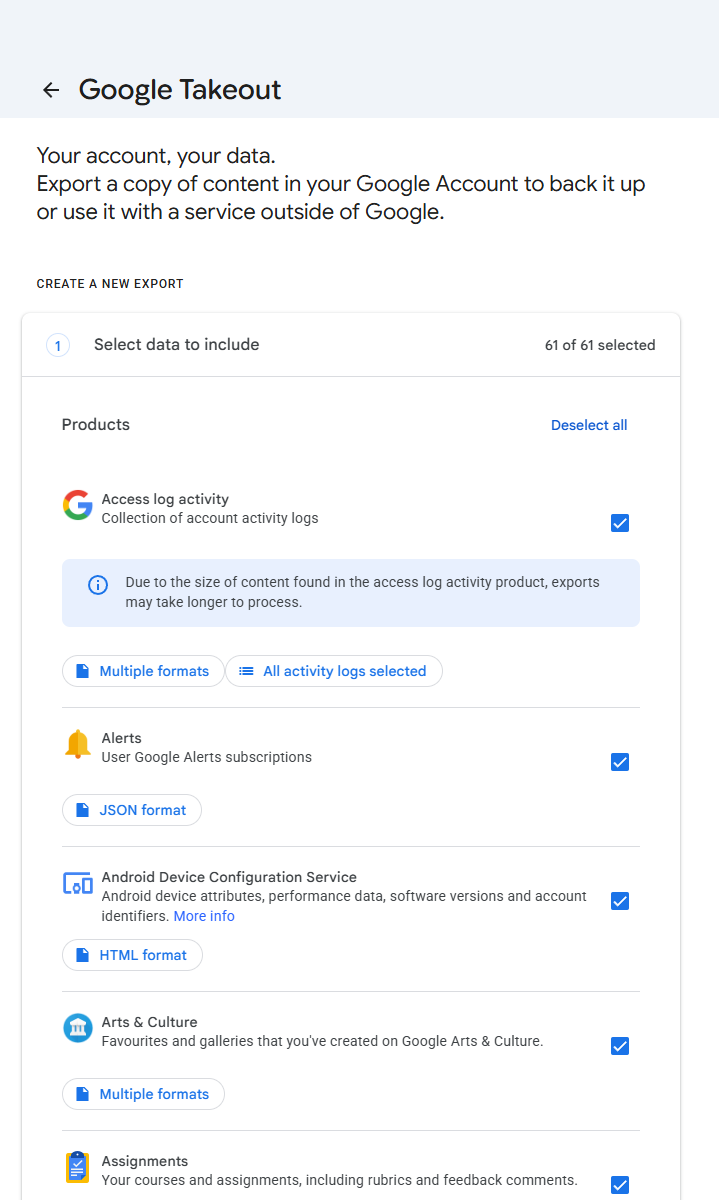
Takeout opens with everything selected - 61 products. Deselect all first unless you genuinely want all of it. -
Deselect all, then pick what you need
Takeout ticks everything by default. Click "Deselect all" and choose only what you want (e.g. Google Photos, Mail, YouTube).
-
Choose .zip and a large chunk size
Under "Next step", choose file type .zip (imports far faster than .tgz) and a 50 GB max size to minimise the number of files.
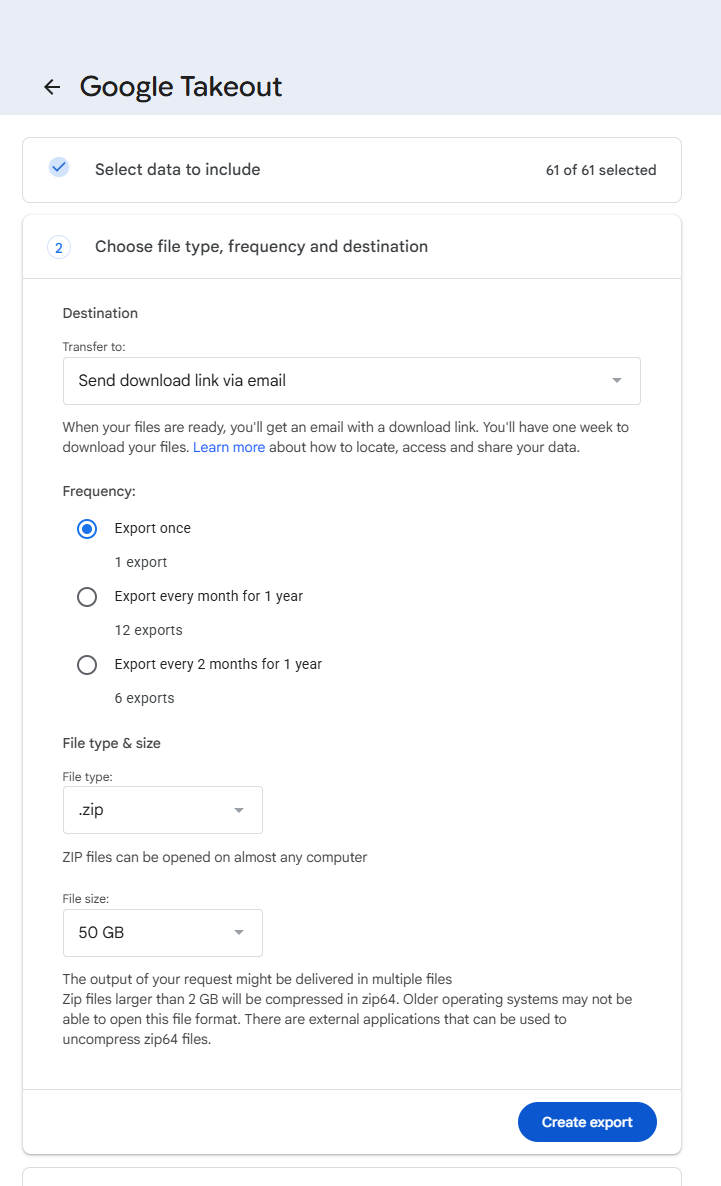
Destination, frequency, file type and size are all on one screen. Google's own note here is worth reading: anything over 2 GB comes back as zip64, which some tools cannot open. Muletto can. -
Choose a one-time export
"Export once" is right for most people. Then "Create export".
-
Wait for the email
Small exports finish in minutes; large photo libraries can take a day or more. Google emails a download link.
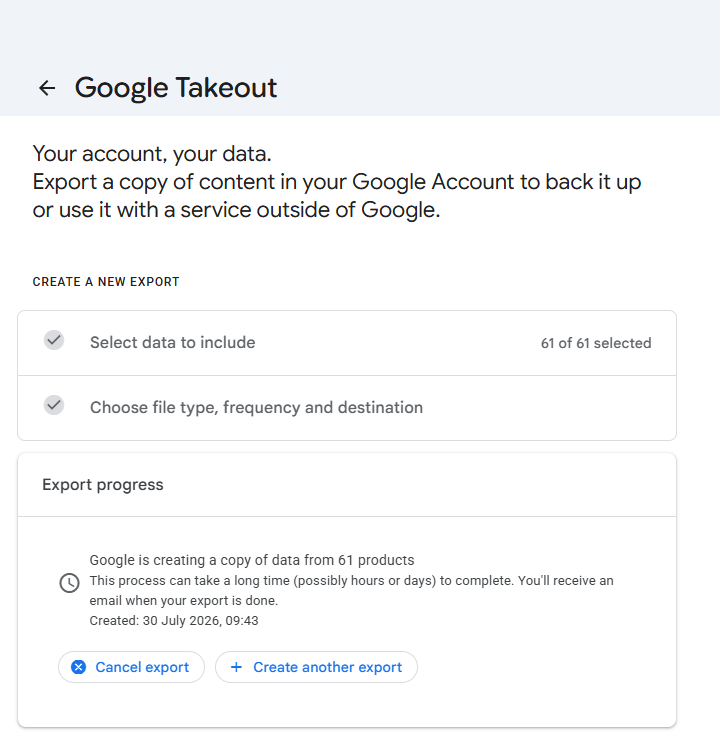
Confirmed on the screen itself: hours or days. Asking for all 61 products is what makes it days. -
Download all parts
Keep every chunk together in one folder for Muletto to open as a set.
Worth knowing
What Muletto does with this export
Once your download arrives, open it in Muletto. The file is read in your browser, on your own machine - nothing is uploaded. You get a breakdown of what is inside, duplicate detection, and a browsable view of your photos, messages, timeline and records.